
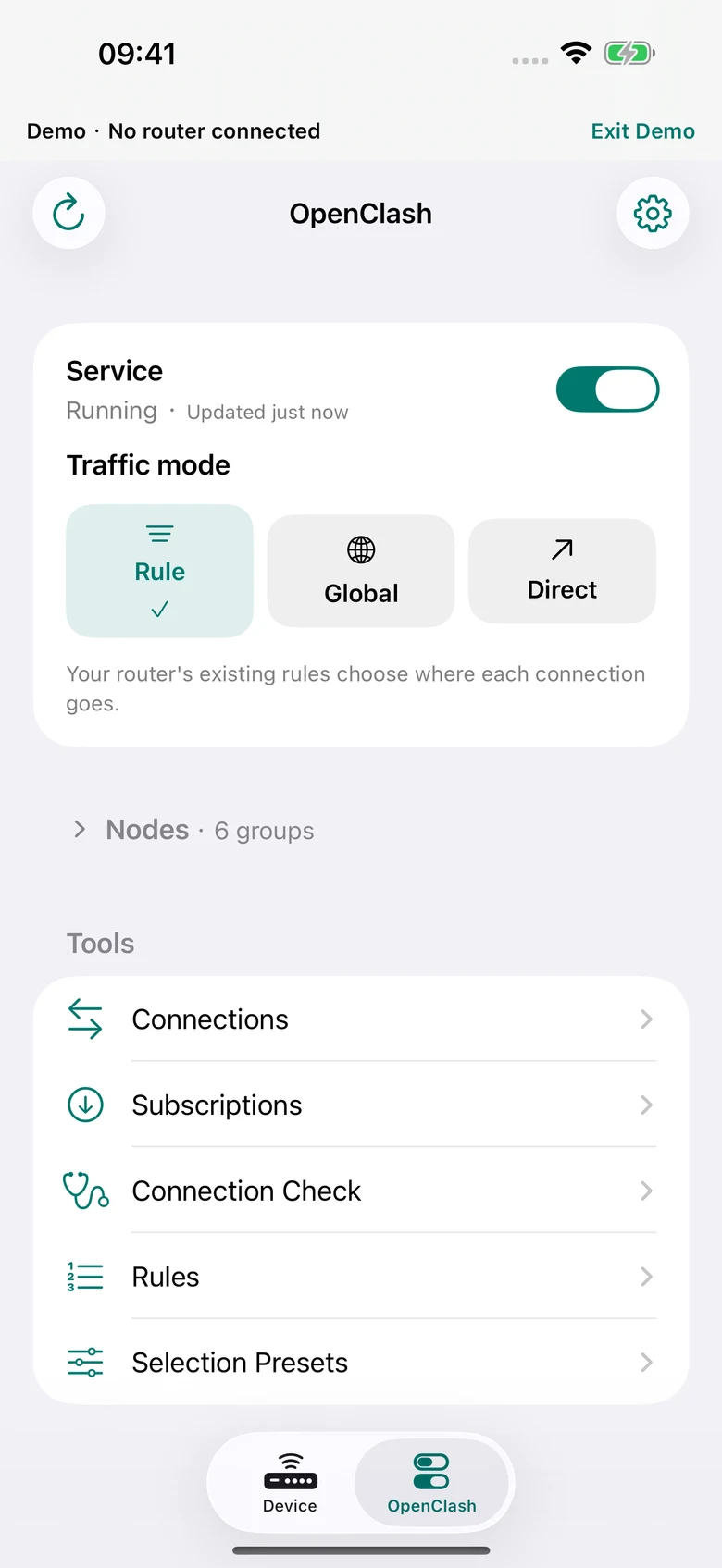
Mudi7 Remote lets you reach an existing Mudi 7 OpenClash setup from your iPhone, iPad or Mac over local Wi-Fi. The core workflow is to connect to the router, open the OpenClash tab and work with the service, modes and node groups already configured there.
Start with a working router-side installation
OpenClash must already be installed and configured on your own compatible router. Mudi7 Remote does not install it, supply proxy nodes or include a proxy subscription. It does not create a VPN tunnel on your iPhone, iPad or Mac.
First connect the app to your Mudi 7 from iPhone or iPad or Mac. Use Device to confirm the connection, then open OpenClash. If the app reports Not installed, complete router-side setup through the appropriate router tools before using these controls.
Choose the control that matches your intent
| Control | What you are changing |
|---|---|
| Service on or off | Whether the existing OpenClash service runs. |
| Rule mode | Use the rules already present in the router’s configuration. |
| Global mode | Use the configured global selection. |
| Direct mode | Select direct mode in the existing setup. |
| Nodes | Choose an available selection within an existing group, where that group allows manual selection. |
Changing the mode and switching the service on or off are different actions. Read the current state before making a change, and check the refreshed state afterward.
Select and organize existing nodes
In the Nodes section below the OpenClash controls, open the group you want to use and select from the choices provided by the router. The available choices depend on your existing configuration; the app cannot create a missing provider or make an unavailable endpoint work merely by selecting it.
Use Reorder to put frequently used groups earlier in the app. Drag rows on iPhone or iPad; use the reorder controls on Mac. This changes the display order on your device. It does not reorder the router’s rules or change which rules have priority.
Explore the OpenClash tools
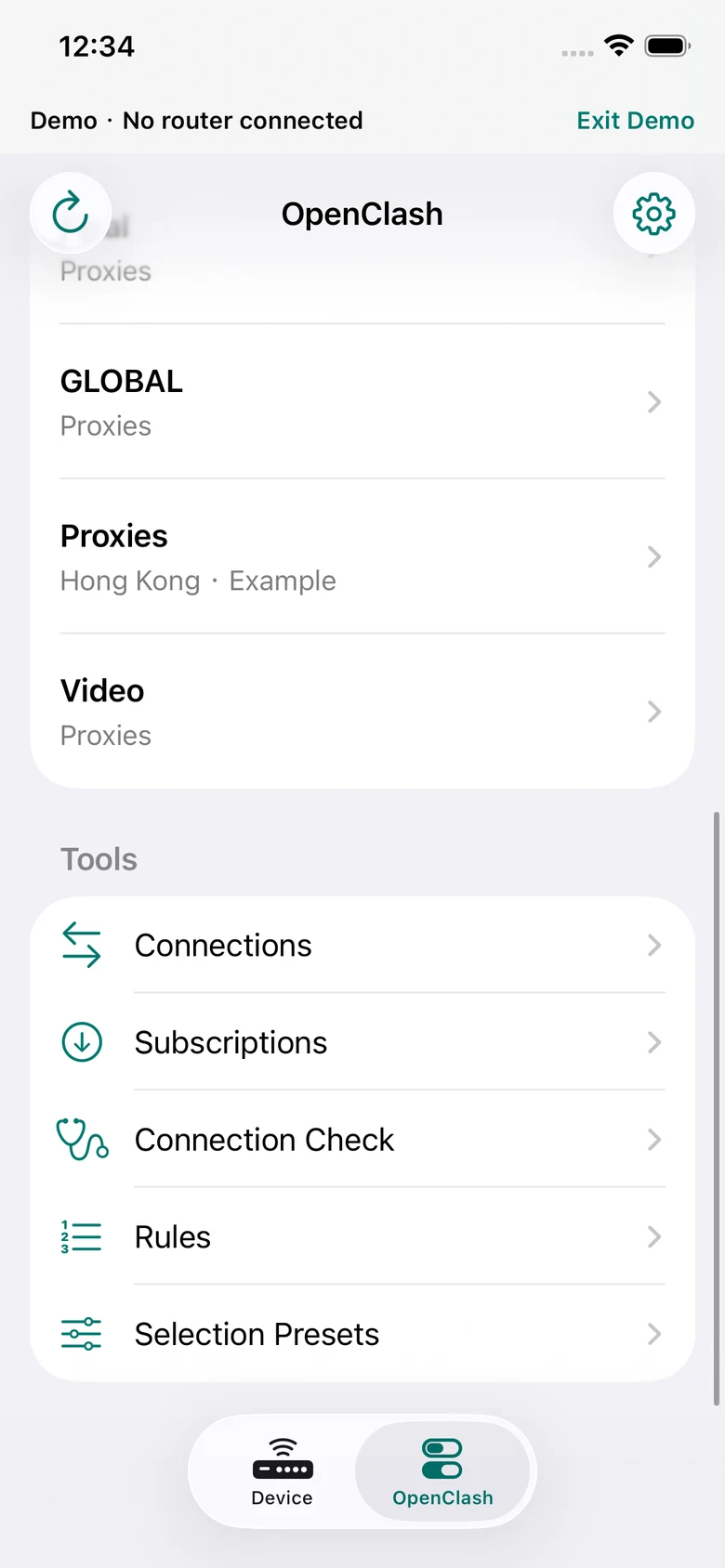
Version 1.5 includes the tools below Nodes. Their availability depends on your existing router configuration and services. Status reads do not guarantee that every provider, route or service combination works.
| Tool | Useful scope and limits |
|---|---|
| Node search and favorites | Find existing choices and save favorites locally for the paired router and configuration. Sorting changes the app’s display. |
| Latency check | Explicitly test a leaf node or a filtered set against Google’s gstatic.com connectivity endpoint. This is not a bandwidth test; results may influence an existing automatic router policy. |
| Connections | Inspect a snapshot of traffic handled by the core, search domain/IP/path and optionally refresh while the page is active. It is not a complete history of all router traffic. |
| Subscriptions | Inspect actual proxy/rule provider collections. Quota and expiry appear only if reported by the provider. Updating an HTTP collection is separate from switching or refreshing the full OpenClash configuration. |
| Connection Check | Review local connection evidence. A DNS test runs only after you request it and sends a query through the router. |
| Rules | Search the existing rules in their original order. This view does not create or persist custom rules. |
| Selection Presets | Save local choices for manual groups, preview differences and apply supported selections after current-configuration checks. Automatic groups cannot simply be pinned this way. |
Closing selected connections requires confirmation and targets the listed connection IDs. It does not block the destination from reconnecting. Provider updates can change nodes or routing rules and save a local encrypted configuration backup first; that backup may not contain every downloaded asset.
Preset application checks the current configuration and reads each selection back. If only part of a preset applies, the app stops and reports the partial result. It does not silently retry or roll everything back. Local preset storage does not guarantee router selections survive a reboot.
For router-level WireGuard and OpenVPN, use the separate router VPN guide.
Check the result at the right level
A selected node is evidence of a configuration choice, not proof that an internet destination is reachable. If traffic does not work, check the router’s internet connection, the existing OpenClash configuration and the relevant provider separately.
If the connection drops during a change, reconnect and read the current state before repeating it. A lost reply does not prove that the router rolled the change back. Stale or previously read values should be treated as historical until refreshed.
The router needs its own internet access for external traffic, even though the app’s local control connection can operate without internet. Mudi7 Remote and the OpenClash project are separate products; app questions belong with Mudi7 Remote support, while hardware and firmware questions belong with the router vendor.