
To use Mudi7 Remote, connect your iPhone or iPad to your GL.iNet Mudi 7’s local Wi-Fi, allow Local Network access, and sign in with the router’s administrator credentials. The app controls a nearby GL-E5800-family router; it does not provide access to a router at another location over the internet.
Prepare the router and phone
You need iOS 17 or iPadOS 17 or later, a powered-on Mudi 7 and working SSH access to it. Check the model and firmware requirements first, particularly if your device label says GL-E5800NA or GL-E5800EU.
If the router is new, complete its own initial setup first. GL.iNet’s guide uses 192.168.8.1 for the default web admin address and asks you to set an administrator password. Your address may differ if you changed the router’s LAN settings. Official first-time setup instructions.
Connect and remember your router
- In iOS or iPadOS Wi-Fi settings, join the Mudi 7’s main Wi-Fi network.
- Open Mudi7 Remote and allow Local Network access when prompted.
- Enter the router administrator password. This is not necessarily the Wi-Fi network password.
- If needed, expand Advanced to set your actual local address, SSH username or port. The app defaults are
192.168.8.1,rootand22. - Select Connect & Remember. After successful SSH authentication, the app saves the verified pairing and credentials in this device’s Keychain.
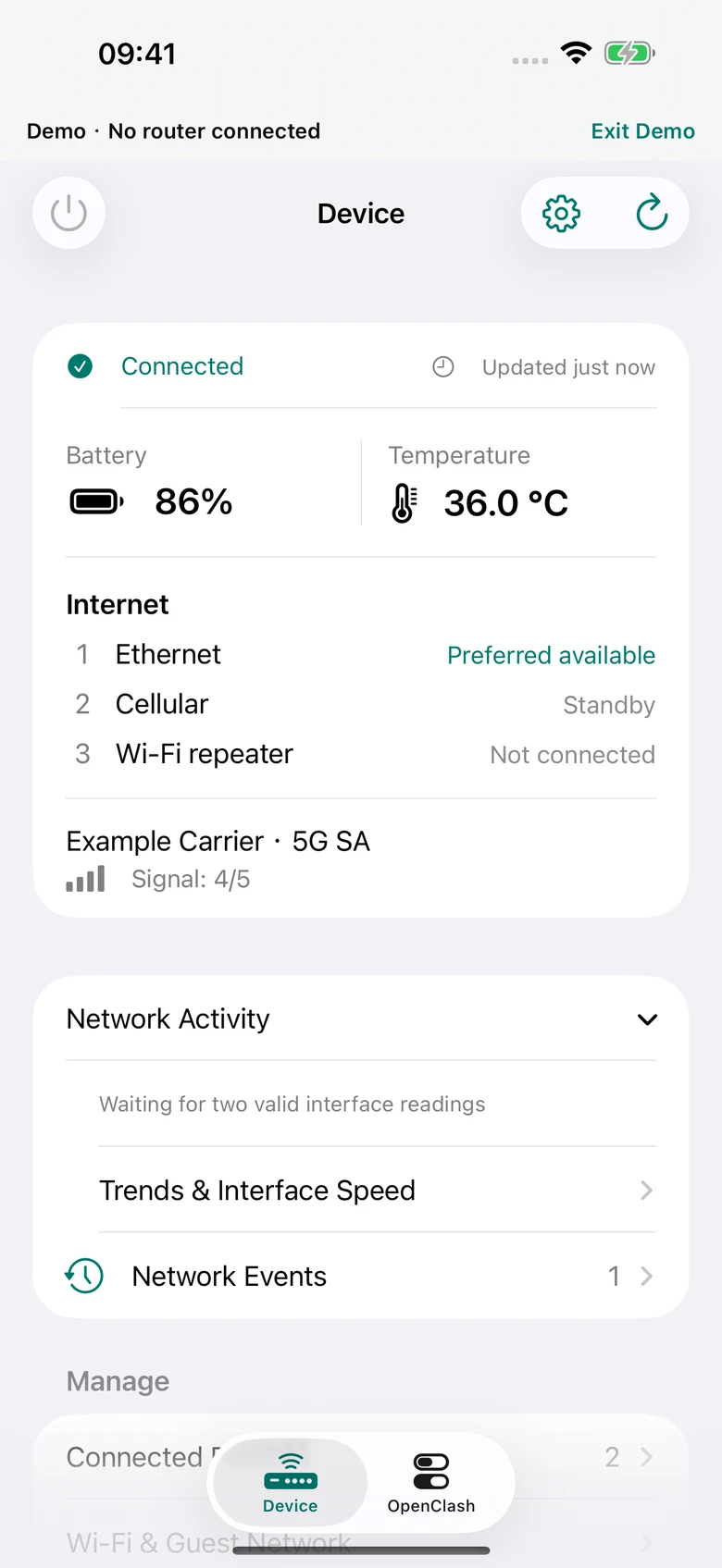
- Open Device and check that the displayed readings are current. Use OpenClash for your existing router-side installation.
If the connection fails
Permission denied: find Mudi7 Remote’s Local Network permission in Settings, enable it and return to the app.
Router unreachable: confirm that the phone is on the router’s Wi-Fi and that Advanced contains the right numeric IPv4 address and SSH port. The phone and router must be on the same local subnet. Public addresses, hostnames and routed access from another network are outside this connection flow.
Authentication rejected: check the administrator/SSH credentials. A Wi-Fi password only joins the wireless network; it does not necessarily authorize router administration.
Saved identity changed: confirm that this is your router and understand why its identity changed, for example after a reset. Once verified, use Settings → Forget Router and pair again. The app does not silently accept a changed saved SSH identity.
Understand what a connection proves
A successful login does not mean every device-setting command is supported. The app checks model and firmware capabilities separately. Unknown models stay read-only, and unavailable controls should not be treated as working features.
Foreground reconnection is also different from background monitoring: the app reconnects while active, without promising that joining Wi-Fi will launch it in the background. For a stale reading or a setting whose result is unclear, reconnect and read the current router state before repeating the change.
Using a Mac instead?
The native Mac edition uses the same local Wi-Fi connection and a separate Keychain pairing. Follow the Mac setup guide for desktop navigation, file imports and keyboard shortcuts.