
NotesExport Pro exports selected Apple Notes into Markdown files on your Mac. Choose the notes or folders you need, select Markdown as the output format, and inspect the exported files before moving them into your knowledge base. The app requires macOS 13 or later.
Prepare a small, representative selection
Open Apple Notes first and check that the notes you want are readable. If a note is locked, unlock it there. Let any needed cloud content become available on the Mac. An export cannot recover a note body or attachment that Apple Notes cannot provide at that moment.
For your first export, choose a few notes that represent your library: plain text, a nested folder, and a note with an attachment. This makes it easier to check the output before exporting a much larger selection.
Export to Markdown
- Open NotesExport Pro and begin the export flow. Allow the requested macOS access to Notes.
- Select your source folders or individual notes. A selected parent folder can cover its children, so you do not need to select every row separately.
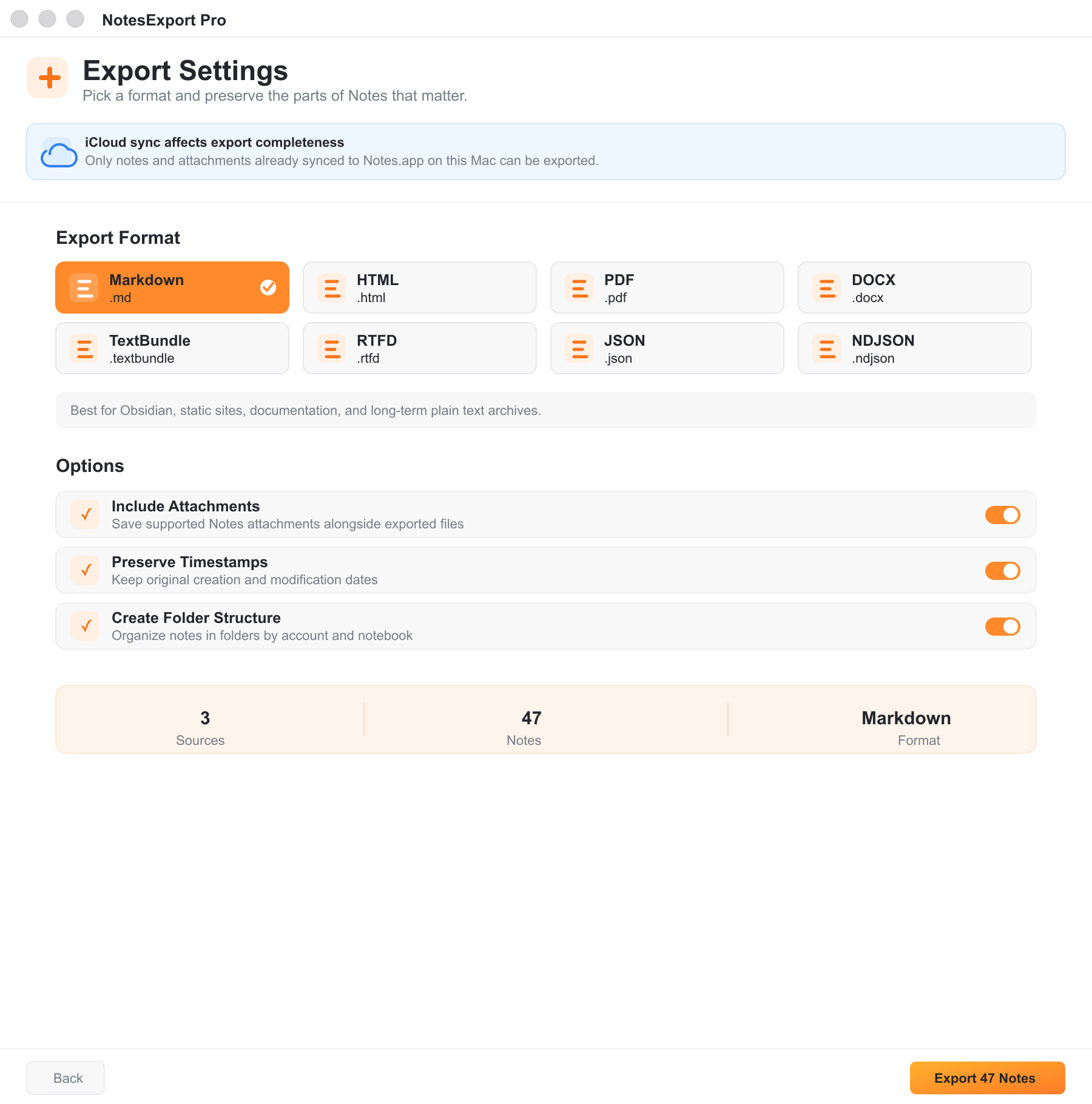
- Choose Markdown in the format selection screen.
- Review the options for folder organization, original timestamps and supported attachments. Choose a destination folder you can find again.
- Start the export and read the completion result. If it reports unavailable content, review the attention report before treating the export as complete.
Check the files before importing them elsewhere
Open a few exported .md files in a Markdown editor. Check their text, folder placement and links to any exported attachments. Keep the supporting files with the notes when copying the archive; moving only the Markdown files can leave attachment references without their targets.
If Obsidian is your destination, start with a small sample in your chosen vault and check the rendering there. Markdown is a portable text format, but a destination app may display tables, attachment types and rich content differently from Apple Notes. This is a file export workflow, not two-way synchronization.
For content that needs a fixed document view, consider a separate PDF export. For other workflows, NotesExport Pro also offers HTML, DOCX, RTFD, TextBundle, TextPack, TXT, JSON and NDJSON. Choose the format for the next use of the files rather than assuming one format reproduces every Apple Notes feature.
Resolve partial exports
When content is unavailable, NotesExport Pro continues with ready items and records the unresolved ones. A placeholder preserves context where possible; it is not a replacement for the missing note body.
Make the missing content available in Apple Notes, then use Retry Unavailable Items. This targets unresolved notes or attachments without selecting successfully exported files again. Read the new result and open representative files once more.
If your aim is a durable archive before reorganizing Notes, follow the local backup guide for a completion checklist.