
A local Apple Notes export gives you files you can inspect outside the Notes app. With NotesExport Pro, you can select a whole source folder or individual notes and write an archive to a location you choose. This guide focuses on making a usable copy and checking it before a cleanup or migration.
Decide what the archive needs to preserve
Choose a format based on how you expect to use the copy:
| Your next use | A format to consider |
|---|---|
| Read and edit notes in a Markdown-based workflow | Markdown |
| Keep documents for reading and sharing | PDF or HTML |
| Continue editing in a word processor | DOCX or RTFD |
| Process exported content with your own tools | JSON or NDJSON |
The app also supports TextBundle, TextPack and TXT. These are exported files, not a full Apple Notes database image. Do not assume an export will restore every native Notes feature or recreate the original library automatically.
Make a dated local export
- Open the source notes on your Mac. Unlock the notes you need and let their content and attachments become available locally.
- Create a clearly named destination folder, for example
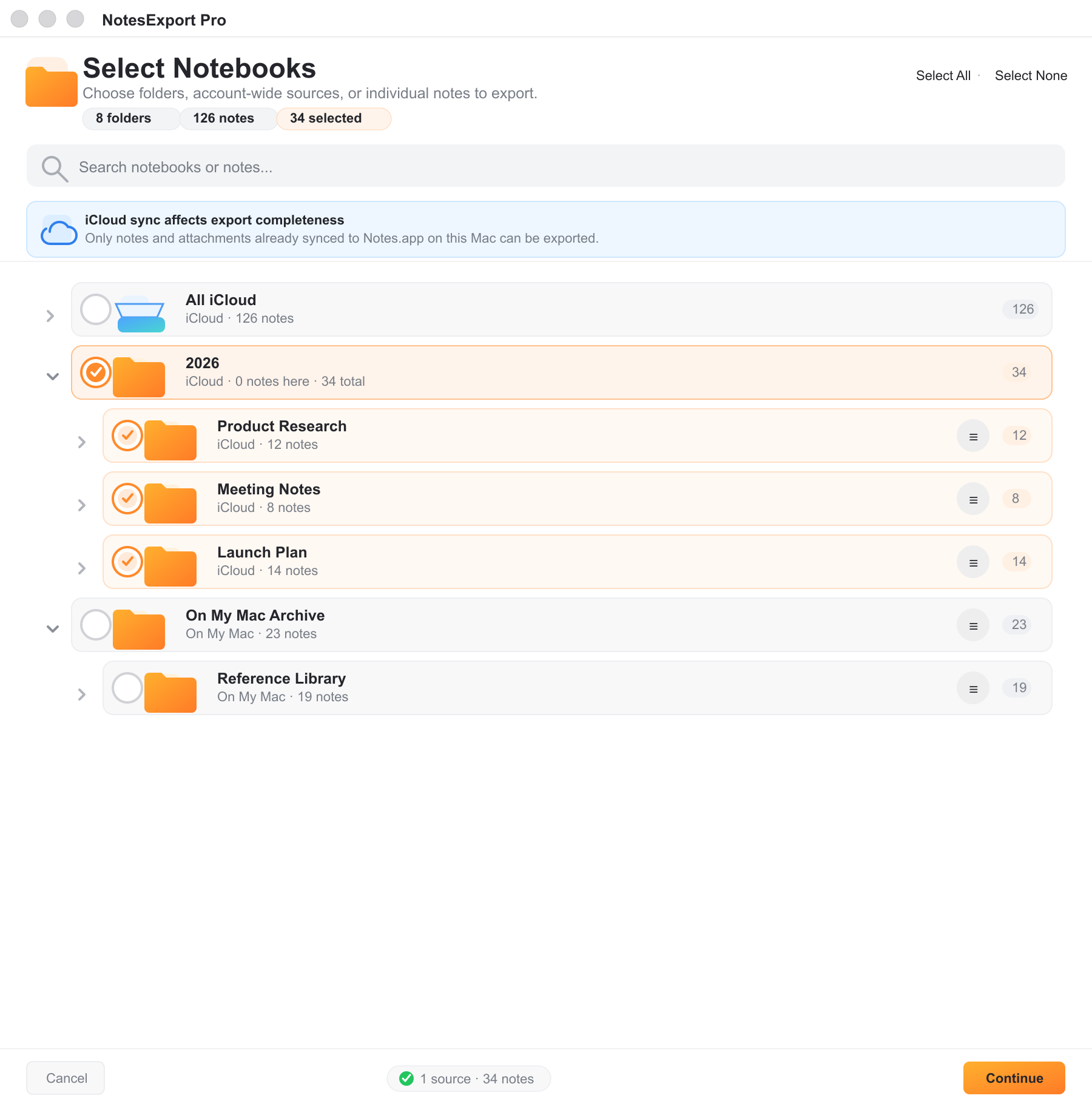
Apple-Notes-Archive-2026-09-13. - In NotesExport Pro, select the account folders, notebooks or individual notes that belong in this archive. Check the intended scope before starting.
- Select an output format and review the options for folder hierarchy, timestamps and supported attachments.
- Start the export and keep its result and any attention report with your verification notes.
Confirm completion instead of counting files alone
One note may produce supporting attachment files, while an unavailable note may leave a marked placeholder. The number of files in Finder therefore does not by itself show whether all the intended content was preserved.
Check the app’s completion state and unresolved items. Open several exported notes from different folders, including an older note and notes with attachments. Confirm that the content you care about is readable, attachment files are present where supported, and the folder structure makes sense.
If the app reports unavailable items, make those items accessible in Apple Notes and use Retry Unavailable Items. Recheck the report after retrying. Keep the original notes until you have verified the exported content you need.
Keep another copy of the verified archive
Once you have checked the export, copy the complete destination folder to your chosen backup storage. Include supporting attachments. A second copy on the same disk does not protect you from losing that disk.
For a later archive, use another dated folder so you can tell the snapshots apart. An export captures available content at the time you run it; this workflow does not promise continuous backup or synchronization.
NotesExport Pro reads selected Notes content locally and writes to your chosen destination. If that destination syncs through another service, that service handles the resulting files under its own settings. See the privacy policy for the app’s data practices.